
The three ports#
The container listens on three ports. Everything about servers, domains and proxies follows from what each one is for:
| Port | Serves | Chosen by |
|---|---|---|
8080 | The Studio — the website people log in to, its API and its WebSocket; and the Node.js servers of projects under /srv/<name>/ | the port |
8081 | Websites — published web apps and games, and WordPress sites, over HTTP. Also answers the certificate authority's domain check. | the host name of the request |
8443 | The same websites over HTTPS, one certificate per domain — and the Studio itself under its own domain. | the host name (SNI) |
On your own computer they are published on 127.0.0.1 as they are. On a server, 8081 becomes port 80 and 8443 becomes port 443 — and there are three ways to get there:
| Way | Who handles HTTPS | Good for |
|---|---|---|
| Built-in HTTPS | The Studio: certificates from Let's Encrypt per domain, requested and renewed by itself | A server of its own. The least to set up — recommended. |
| Caddy in front | A Caddy container that ships with the repository | When you prefer a separate, well-known proxy doing TLS. |
| Your own proxy | nginx, Apache, Traefik, HAProxy, a load balancer … | A server that already runs a proxy for other sites. |
DNS#
Create these records at your domain provider. 203.0.113.7 stands for your server's address.
| Record | Points to | For |
|---|---|---|
studio.example.com A (and AAAA) | the server | The Studio itself |
*.apps.example.com A (and AAAA) | the server | Optional but comfortable: every website and WordPress site gets <name>.apps.example.com by itself (SITES_BASE_DOMAIN) |
mygame.com, www.mygame.com A (and AAAA) | the server | Own domains that users add to a website |
Use a separate domain for websites — not a sub-domain of the Studio's own (apps.example.com beside studio.example.com is fine; sites.studio.example.com is not). Websites run other people's code; browsers share cookies between a domain and its sub-domains.
No domain at hand? A wildcard DNS service gives you names for an address: SITES_BASE_DOMAIN=203.0.113.7.sslip.io makes every site reachable as <name>.203.0.113.7.sslip.io.
Built-in HTTPS#
The repository has a second Compose file and an example configuration for exactly this case.
git clone https://github.com/bugfishtm/ai-everything.git
cd ai-everything
cp .env.server.example .env
nano .env                       # the values marked CHANGE
docker compose up -d
docker compose logs -f studio   # wait for: certificate for studio.example.com issued
Then open https://studio.example.com and log in.
What you fill in
COMPOSE_FILE=docker-compose.yml:docker-compose.server.yml

STUDIO_DOMAIN=studio.example.com          # the Studio's own host name
PUBLIC_URL=https://studio.example.com

ACME_AGREE_TOS=yes                        # you accept the certificate authority's terms
ACME_EMAIL=you@example.com

ADMIN_EMAIL=you@example.com               # the first account
ADMIN_USERNAME=admin
ADMIN_PASSWORD=a-long-password

REGISTRATION=closed
SITES_BASE_DOMAIN=apps.example.com        # optional: <name>.apps.example.com for every site
What the server file does
- Publishes 80 and 443 on every address of the server — IPv4 and IPv6. (A domain with an AAAA record is checked over IPv6 by the certificate authority; a port published as
0.0.0.0:80would be IPv4 only.) - Keeps the Studio's plain port 8080 on the server itself. People reach the Studio over HTTPS under
STUDIO_DOMAIN. For maintenance without a certificate:ssh -L 8080:127.0.0.1:8080 you@server, thenhttp://localhost:8080. - Tells the Studio the real ports, so the addresses it shows are right, and sets cookies to HTTPS only.
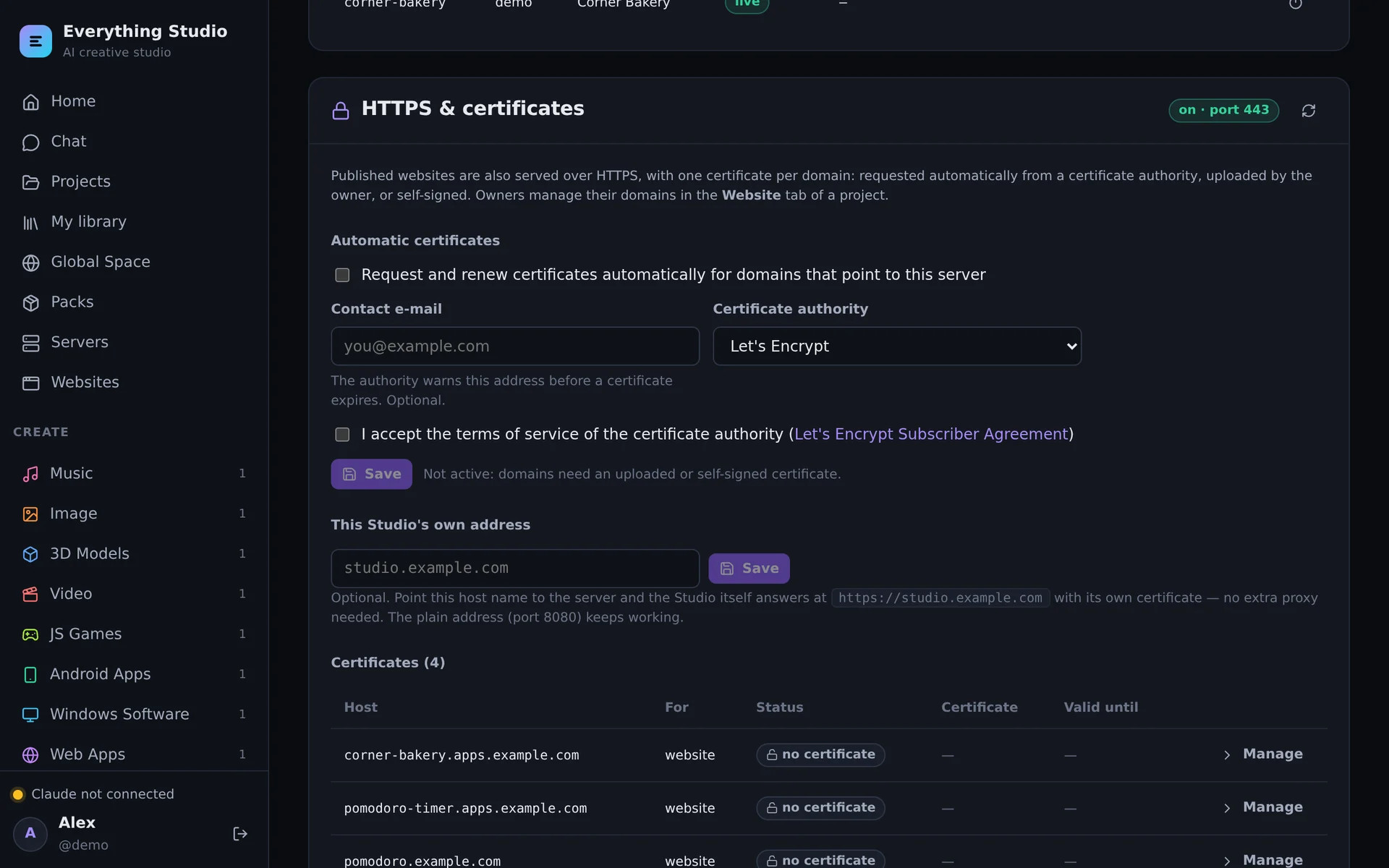
How certificates work#
- A certificate is requested when a host is live (the Studio's domain, a published website, an installed WordPress) and its DNS points to the server. The certificate authority then calls
http://<domain>/.well-known/acme-challenge/…on port 80 — so port 80 must be reachable from the internet. - They are renewed when a third of their lifetime is left (30 days at most), checked every ten minutes.
- A failed request is tried again with growing pauses — 5 minutes, 15, an hour, up to a day. The reason is shown next to the domain (the project's Website tab, Admin → HTTPS). Request now tries at once.
- New orders are limited for the whole Studio (
ACME_ORDERS_PER_HOUR, 40) so that no single user can use up the authority's limits. - Private keys are stored encrypted in the database.
Per domain the owner chooses, in the project's Website tab:
| Mode | Meaning |
|---|---|
| Automatic | Let's Encrypt — or another ACME authority set under Admin → HTTPS (ACME_DIRECTORY_URL). There is also Let's Encrypt's staging authority for tests. |
| Your own | Paste a certificate and its key (PEM) — from your own authority, or an origin certificate of a CDN. Checked against the domain. Admins can upload wildcard certificates for a whole base domain. |
| Self-signed | Generated on the spot. For tests and private networks — browsers warn. |
| Off | No HTTPS for this host. |
Each domain also has redirect HTTP to HTTPS (on by default once a certificate is there) and HSTS.
Many sites under one base domain? Let's Encrypt issues 50 certificates per registered domain and week. Upload one wildcard certificate for *.apps.example.com under Admin → HTTPS and every site below it is covered at once.
The first account#
On a public server set ADMIN_EMAIL and ADMIN_PASSWORD — the account is created at the first start.
Without them the first visitor creates the admin account. From the server itself or its private network that simply works; from anywhere else the form asks for a setup code that only someone with access to the server can read:
docker compose logs studio | grep "setup code"Registration is closed by default: after the first account, administrators add people under Admin → Users.
Behind Caddy#
The repository contains a Caddy service as a Compose profile. Caddy takes ports 80 and 443, gets the certificate for the Studio's domain, and certificates on demand for every website host — but only for hosts the Studio confirms.
DOMAIN=studio.example.com
PUBLIC_URL=https://studio.example.com
TRUST_PROXY=true
SITES_HTTPS=true              # a proxy does HTTPS: the built-in HTTPS switches itself off
SITES_BASE_DOMAIN=apps.example.comdocker compose --profile https up -dKeep SITES_PORT and SITES_HTTPS_PORT at their defaults and do not add docker-compose.server.yml — Caddy owns ports 80 and 443 here.
This is the whole proxy configuration (docker/Caddyfile):
{
	on_demand_tls {
		ask http://studio:8081/.well-known/ai-everything/tls-allowed
	}
}

{$DOMAIN} {
	encode zstd gzip
	reverse_proxy studio:8080
}

https:// {
	tls {
		on_demand
	}
	encode zstd gzip
	reverse_proxy studio:8081
}

http:// {
	redir https://{host}{uri} 308
}
Behind nginx or another proxy#
Any reverse proxy works when it does five things:
- Routes by host: the Studio's host name → port
8080, every other host name → port8081. - Passes the original host and scheme:
Host(orX-Forwarded-Host),X-Forwarded-Proto,X-Forwarded-For. - Passes WebSockets: the Studio uses
/ws; project servers use/srv/<name>/…on both ports. - Does not buffer and does not hurry: answers are streamed, an AI run can take a long time. Timeouts of an hour, buffering off.
- Lets uploads through: up to
UPLOAD_LIMIT_MB(500) on the Studio,WORDPRESS_UPLOAD_MB(64) on websites.
And the Studio needs to know about it:
TRUST_PROXY=true                       # believe the X-Forwarded-* headers
PUBLIC_URL=https://studio.example.com
SITES_HTTPS=true                       # addresses are https://…, the built-in HTTPS is off
SITES_BASE_DOMAIN=apps.example.com
# STUDIO_BIND and SITES_BIND stay 127.0.0.1 when the proxy runs on the same machine
Set TRUST_PROXY=true only when a proxy really is in front and nothing else can reach ports 8080 and 8081 — otherwise anybody could send those headers.
nginx
map $http_upgrade $connection_upgrade {
    default upgrade;
    ''      close;
}

# The Studio itself
server {
    listen 443 ssl;
    listen [::]:443 ssl;
    server_name studio.example.com;

    ssl_certificate     /etc/letsencrypt/live/studio.example.com/fullchain.pem;
    ssl_certificate_key /etc/letsencrypt/live/studio.example.com/privkey.pem;

    client_max_body_size 600m;               # UPLOAD_LIMIT_MB and some room

    location / {
        proxy_pass http://127.0.0.1:8080;
        proxy_http_version 1.1;
        proxy_set_header Host              $host;
        proxy_set_header X-Forwarded-Host  $host;
        proxy_set_header X-Forwarded-Proto $scheme;
        proxy_set_header X-Forwarded-For   $proxy_add_x_forwarded_for;
        proxy_set_header Upgrade           $http_upgrade;
        proxy_set_header Connection        $connection_upgrade;
        proxy_read_timeout  3600s;
        proxy_send_timeout  3600s;
        proxy_buffering         off;
        proxy_request_buffering off;
    }
}

# Websites and WordPress sites: every other host name
server {
    listen 443 ssl default_server;
    listen [::]:443 ssl default_server;
    server_name *.apps.example.com;

    ssl_certificate     /etc/letsencrypt/live/apps.example.com/fullchain.pem;    # a wildcard certificate
    ssl_certificate_key /etc/letsencrypt/live/apps.example.com/privkey.pem;

    client_max_body_size 100m;               # WORDPRESS_UPLOAD_MB and some room

    location / {
        proxy_pass http://127.0.0.1:8081;
        proxy_http_version 1.1;
        proxy_set_header Host              $host;
        proxy_set_header X-Forwarded-Host  $host;
        proxy_set_header X-Forwarded-Proto $scheme;
        proxy_set_header X-Forwarded-For   $proxy_add_x_forwarded_for;
        proxy_set_header Upgrade           $http_upgrade;
        proxy_set_header Connection        $connection_upgrade;
        proxy_read_timeout  3600s;
        proxy_send_timeout  3600s;
        proxy_buffering         off;
        proxy_request_buffering off;
    }
}

server {
    listen 80 default_server;
    listen [::]:80 default_server;
    return 308 https://$host$request_uri;
}
With a proxy of your own, its certificates decide which domains work over HTTPS. A wildcard certificate covers the base domain; for own domains that users add you issue certificates in the proxy — or let Caddy's on-demand TLS or the built-in HTTPS do that, which is what they are made for.
Asking the Studio whether a host is real
Proxies that can issue certificates on demand should ask first, as the Caddy setup does. This address answers 200 for hosts of live websites and 404 for everything else:
http://127.0.0.1:8081/.well-known/ai-everything/tls-allowed?domain=mygame.comBehind Apache#
Apache needs the modules proxy, proxy_http, proxy_wstunnel, rewrite, headers and ssl. On Debian and Ubuntu:
sudo a2enmod proxy proxy_http proxy_wstunnel rewrite headers ssl
sudo systemctl reload apache2
Two virtual hosts: one for the Studio's host name (port 8080), one for every other host name (port 8081). The WebSocket rule must cover every path, not only /ws — project servers use /srv/<name>/…, and a website in server mode can use any path. Without X-Forwarded-Proto the Studio believes requests are plain HTTP: websites with “force HTTPS” then redirect in a loop and secure cookies fail.
# Websites and WordPress sites: every other host name.
# The first *:443 host Apache loads is its default — so own domains that users add land here.
<VirtualHost *:443>
    ServerName  apps.example.com
    ServerAlias *.apps.example.com

    SSLEngine on
    SSLCertificateFile    /etc/letsencrypt/live/apps.example.com/fullchain.pem   # a wildcard certificate
    SSLCertificateKeyFile /etc/letsencrypt/live/apps.example.com/privkey.pem

    LimitRequestBody 104857600                # 100 MB: WORDPRESS_UPLOAD_MB and some room

    RewriteEngine On
    RewriteCond %{HTTP:Upgrade} websocket [NC]
    RewriteRule ^/(.*) ws://127.0.0.1:8081/$1 [P,L]

    ProxyPreserveHost On
    RequestHeader set X-Forwarded-Proto "https"
    ProxyPass        / http://127.0.0.1:8081/ flushpackets=on
    ProxyPassReverse / http://127.0.0.1:8081/
    ProxyTimeout 3600
</VirtualHost>

# The Studio itself
<VirtualHost *:443>
    ServerName studio.example.com

    SSLEngine on
    SSLCertificateFile    /etc/letsencrypt/live/studio.example.com/fullchain.pem
    SSLCertificateKeyFile /etc/letsencrypt/live/studio.example.com/privkey.pem

    LimitRequestBody 629145600                # 600 MB: UPLOAD_LIMIT_MB and some room

    RewriteEngine On
    RewriteCond %{HTTP:Upgrade} websocket [NC]
    RewriteRule ^/(.*) ws://127.0.0.1:8080/$1 [P,L]

    ProxyPreserveHost On
    RequestHeader set X-Forwarded-Proto "https"
    ProxyPass        / http://127.0.0.1:8080/ flushpackets=on
    ProxyPassReverse / http://127.0.0.1:8080/
    ProxyTimeout 3600
</VirtualHost>

# Plain HTTP: everything to HTTPS
<VirtualHost *:80>
    ServerName  studio.example.com
    ServerAlias *
    RewriteEngine On
    RewriteRule ^/(.*) https://%{HTTP_HOST}/$1 [R=308,L]
</VirtualHost>sudo a2ensite 000-studio
sudo apachectl configtest && sudo systemctl reload apache2The Studio needs to know about the proxy — these lines in .env, then docker compose up -d:
# Apache on the same machine: the container's ports stay local
STUDIO_BIND=127.0.0.1
STUDIO_PORT=8080
SITES_BIND=127.0.0.1
SITES_PORT=8081

TRUST_PROXY=true                       # believe Apache's X-Forwarded-* headers
PUBLIC_URL=https://studio.example.com
COOKIE_SECURE=true                     # cookies only over HTTPS
SITES_HTTPS=true                       # website addresses are https://…, the built-in HTTPS is off
SITES_BASE_DOMAIN=apps.example.com     # optional: needs the wildcard DNS record *.apps.example.com
Use 127.0.0.1 in ProxyPass, not localhost: localhost can resolve to the IPv6 address ::1, where Docker does not listen, and you get random 503 errors. Leave SITES_PORT at 8081 here — with a proxy in front it is the port Apache talks to, not the one visitors see.
Behind a CDN#
With a CDN or a DNS proxy in front (Cloudflare with the orange cloud, for example), visitors talk to the CDN and the CDN talks to your server:
- Use the built-in HTTPS with your own certificate: create an origin certificate at the CDN and paste it under the domain's HTTPS settings (or as a wildcard under Admin → HTTPS). Set the CDN to verify it (“Full (strict)”).
- Automatic certificates need the certificate authority to reach port 80 of your server under the domain. With the CDN in between that is not guaranteed — a DNS-only record (grey cloud) is the simple way if you want them.
- WebSockets must be allowed, and upload limits of the CDN apply on top of the Studio's.
Firewall and a short checklist#
- Open 80 and 443 (TCP) — and your SSH port. Nothing else.
- Docker publishes ports itself, past host firewalls like
ufw: what a Compose file publishes on all addresses is reachable. The server file publishes only 80 and 443 that way; 8080 stays on127.0.0.1. REGISTRATION=closedand an admin account from.env.- A backup that runs:
./scripts/backup.shfrom cron, copied off the server. - Updates:
docker compose pull && docker compose up -d. WordPress sites update their security releases themselves; keep their plugins current. - Know the limits per user (
MAX_RUNS_PER_USER,MAX_SERVICES_PER_USER,MAX_SITES_PER_USER,MAX_WORDPRESS_PER_USER) — see Configuration.
When a certificate does not come#
| Message | Cause and fix |
|---|---|
| … has no DNS record yet | The domain does not resolve. Create the A record (and AAAA) and wait until it is visible — the Studio tries again by itself. |
| … must reach http://domain/ on port 80 | DNS points somewhere else, port 80 is closed, or the website port is not published as 80. A common trap: an AAAA record that points to another machine — the authority prefers IPv6. |
| Automatic certificates are switched off | An admin switches them on under Admin → HTTPS (contact e-mail, accepting the terms) — or ACME_AGREE_TOS=yes in .env. |
| … is not a public domain name | Names like .local, .test or .localhost cannot get a public certificate. Use a self-signed one. |
| … rate limited / many certificates were requested | The authority's or the Studio's limit. It continues by itself later; a wildcard certificate avoids it for a base domain. |
The browser shows a certificate for localhost | The host has no certificate (yet), so the fallback was sent. Look at the domain's status in the Website tab. |
The AI in a project can look, too: studio site cert shows the state of each domain, studio site cert issue requests again, studio site domain check tests whether the domains reach this Studio.