
The idea#
You describe what you want; an AI coding agent builds it. The Studio is everything around that: a place per project, the tools the AI needs, editors for what it makes, and a way to keep, version and publish the results.
- Projects. Every project is a folder of its own with a chat, files, a terminal and a history. The AI works inside that folder and nowhere else.
- Text first. Songs, 3D scenes, pictures and videos are human-readable text files. Text is the source of truth — you and the AI can read it, change it and compare versions. The audio, image and model files are rendered from it.
- Your own AI account. The Studio does not include an AI and does not resell one. Each person connects their own Claude account (or another AI the admin switched on), under that provider's terms.
The areas#
| Area | You get | Made with |
|---|---|---|
| Music | Songs, loops, sound effects as WAV, MP3, MIDI, stems | studio-daw — songs as text, the DAW in the browser |
| Image | Posters, icons, textures, pixel art as PNG, JPG, WebP, ICO | studio-image — layers of shapes, text and textures |
| 3D Models | Props and scenes as .glb, .obj, .stl, .ply | studio-3d — scenes as text, the 3D editor |
| Video | Trailers, slideshows, shorts, stick-figure animation as MP4 | studio-video, studio-stickman |
| JS Games | Browser games, playable at once | HTML5, canvas, WebGL, three.js, Phaser |
| Android Apps | Installable APKs | Kotlin, Jetpack Compose, Gradle, the Android SDK |
| Windows Software | .exe programs and installers | .NET (console, WinForms, WPF), C/C++ with mingw-w64, NSIS |
| Web Apps | Websites and tools with a live preview | HTML, CSS, JavaScript, Vite |
| WordPress | A running WordPress site, plugins, themes, blocks | PHP, WP-CLI, starters for modules |
| Anything Else | Scripts, documents, research | Everything in the image |
Each area has ideas to start from, a project template and its own instructions for the AI. The area page also lists the tools and skills the AI brings there.
Working in a project#
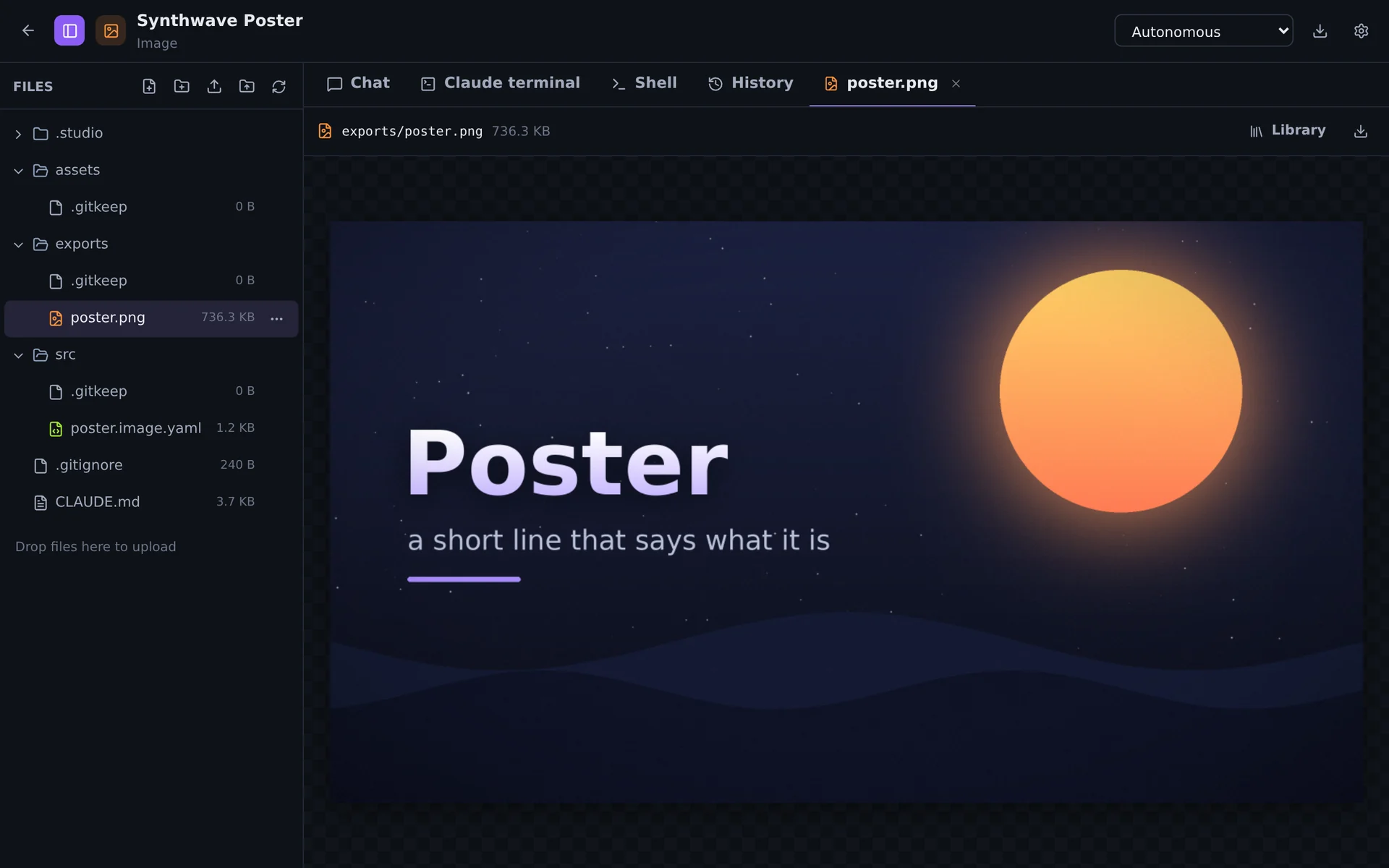
| Tab | What it is for |
|---|---|
| Chat | Talk to the AI. You see its text, its thinking, every command and file change as it happens — and a saved version after every turn. |
| AI terminal | The AI's own interactive program (Claude Code, or codex, gemini, opencode) in the project folder. |
| Shell | A terminal in your own account on the server — for git, npm, wp, the Studio tools. |
| Preview / Play | Web apps and games in a sandboxed frame. |
| Server | The project's Node.js backend: status, live log, environment, restart, rollback. |
| Website | Publish, addresses, domains and HTTPS. |
| WordPress | The site of a WordPress project: set up, open, plugins, themes, tools. |
| History | Releases (versions with numbers) and every single change — each can be restored. |
| Files | Open, edit, upload, download. Images, audio, video, 3D models, Markdown and code have viewers; songs open in the DAW, scenes in the 3D editor. |
How much the AI may do on its own
| Mode | Meaning |
|---|---|
| Autonomous | The AI works without asking. It runs in your sandbox account and can only reach your own files. |
| Ask for commands | File edits happen; commands need your OK in the chat. |
| Ask for everything | Every change and command is shown for approval. |
| Plan only | The AI reads and plans, and changes nothing. |
The mode is set per project (top bar, or project settings) — together with the AI and the model for new chats.
Connecting an AI#
Account & AI is where each person connects their own accounts.
Claude
- Sign in to Claude Code (Claude Pro, Max, Team): Claude Code's own sign-in runs in a terminal in your browser, you approve it on Anthropic's site. The login is kept by Claude Code in your private account on the server — the Studio never sees or stores subscription credentials.
- API key from the Anthropic Console, stored encrypted and billed to you.
The sidebar shows how much of your plan's limits is used; Account → Usage has the details per day, project and AI.
Other AIs
An administrator can switch on more under Admin → AI providers. They behave like Claude in the chat — streaming text, tool calls, approvals, a saved version after every turn.
| AI | Connect with |
|---|---|
| OpenAI Codex | “Sign in with ChatGPT” or an OpenAI API key |
| Google Gemini | “Sign in with Google” or a Gemini API key |
| OpenCode | API keys of many providers (OpenAI, Google, OpenRouter, Groq, Mistral, DeepSeek, xAI …) or its own sign-ins |
| Any ACP agent | Whatever the agent supports — admins add its command |
A project has an AI for its new chats; every chat keeps the AI it started with.
Finding your projects#
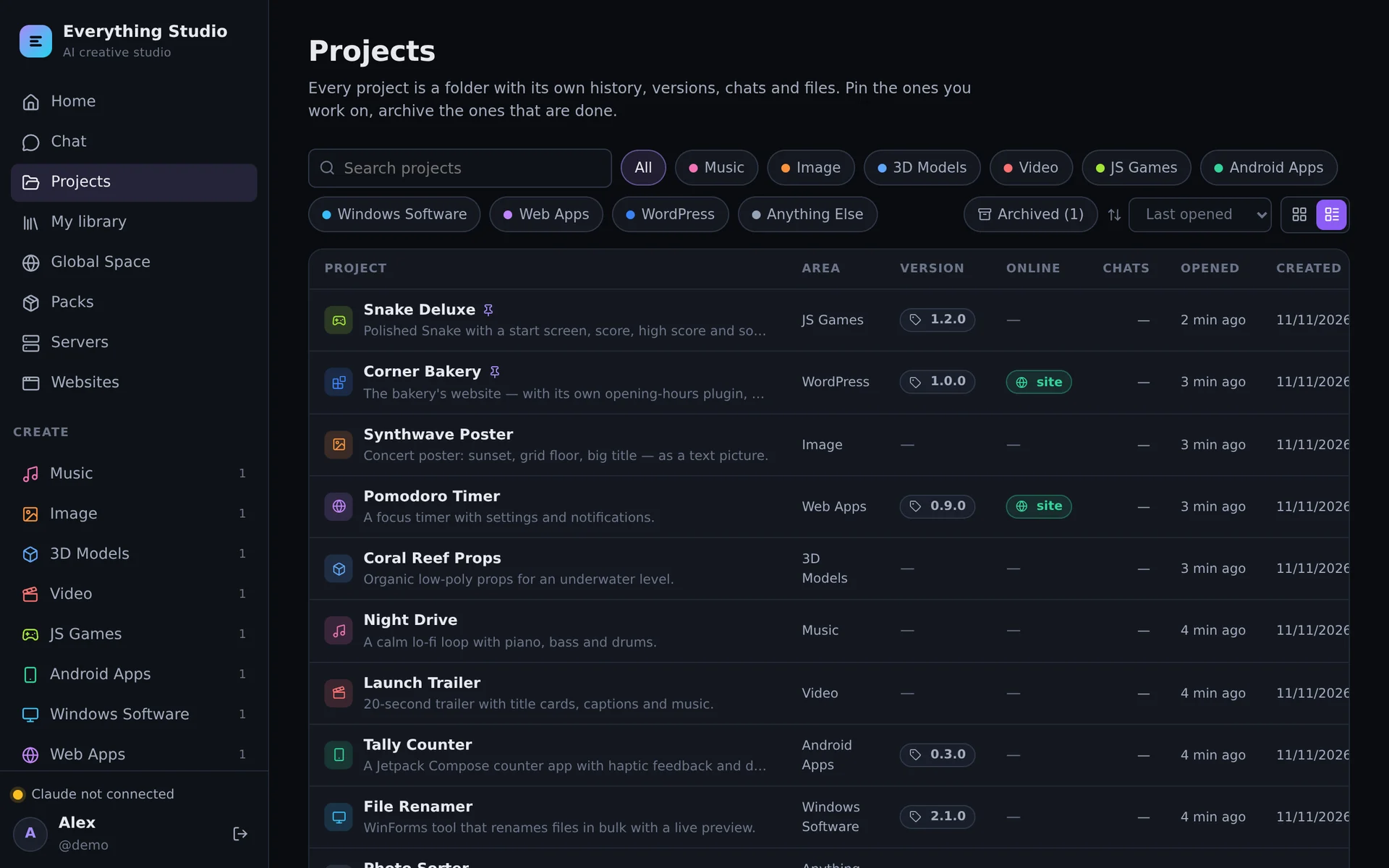
- Cards or a list with details — version, website and servers, chats, last opened, created.
- Search by name, description, area or version; sort by last opened, last changed, name, newest, oldest or version.
- Pin what you are working on to the top. Archive what is done — it leaves the list and stays one click away.
- Right-click a project (or use the ⋯ button) to rename or delete it. Deleted projects stay in a trash for a few days.
History and versions#
Two things, both in the project's History tab:
- Every change — the project is a git repository, and the Studio saves a checkpoint after every AI turn. Any of them can be restored; the current state is saved first, so nothing is lost.
- Releases — versions with numbers. Switch Versioning on when you create a project (it is preselected for apps, games, websites and WordPress) or later in this tab.
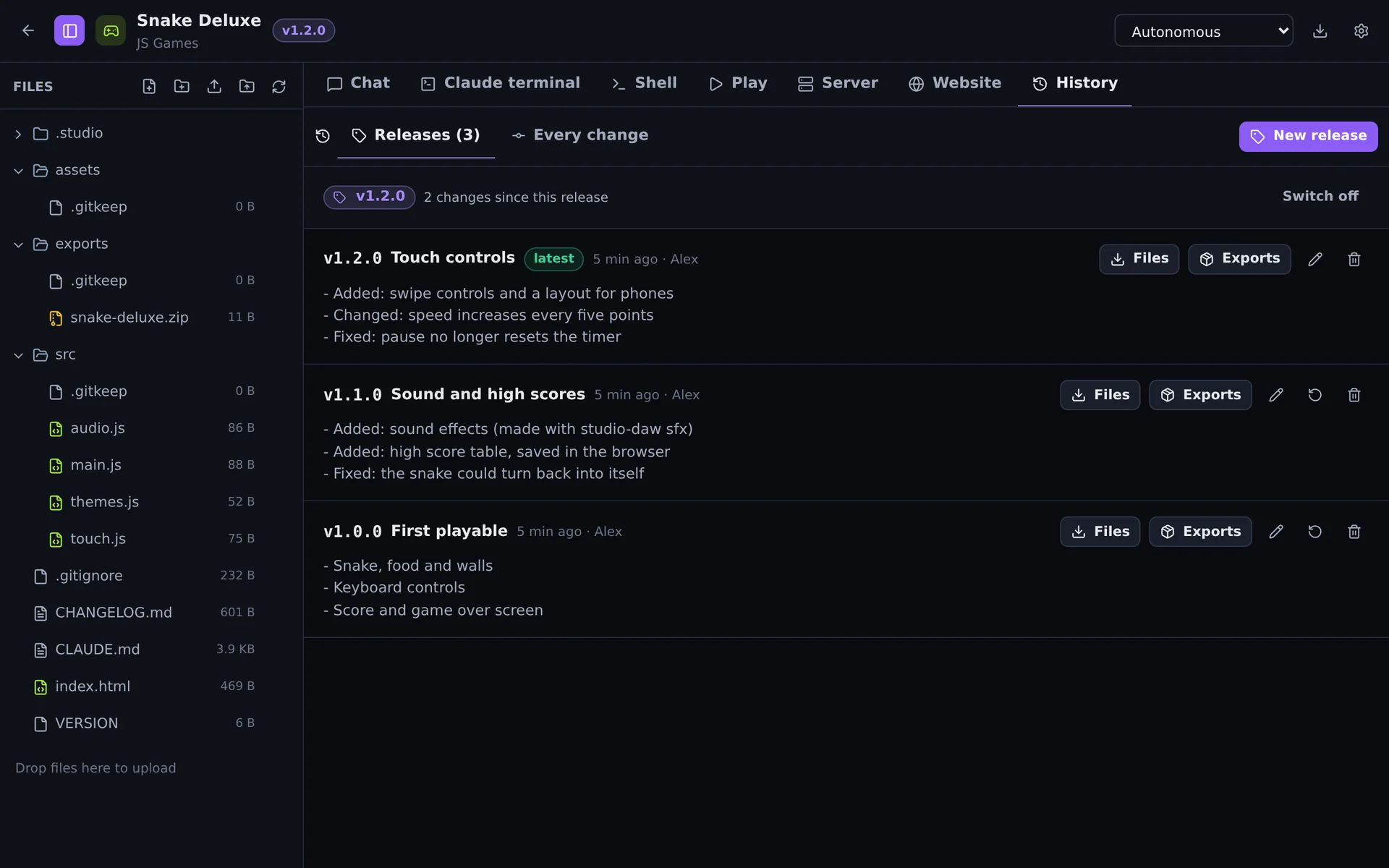
A versioned project carries a VERSION file and a CHANGELOG.md. New release gives the current state the next number:
| Step | For | Example |
|---|---|---|
| Patch | Fixes | 1.2.0 → 1.2.1 |
| Minor | New features | 1.2.1 → 1.3.0 |
| Major | Big or breaking changes | 1.3.0 → 2.0.0 |
| Your own number | Anything, also pre-releases | 2.0.0-beta.1 |
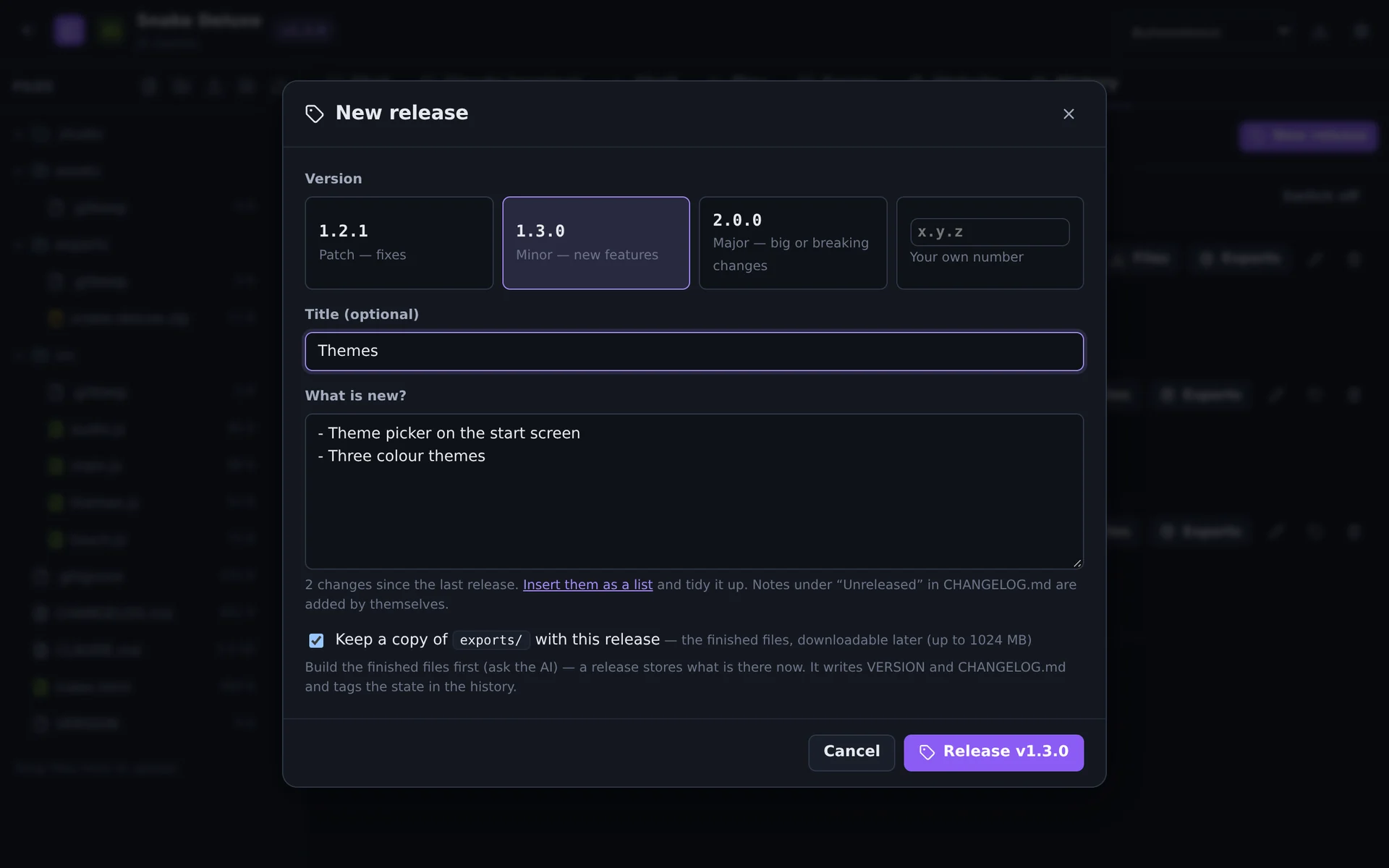
A release writes the version file, moves what was noted under “Unreleased” into the changelog entry, tags the state in the history, and keeps a copy of exports/ — the APK, the .exe, the song. Later you can download the project files or the exports of any release, or restore it.
The AI knows about it: “release version 1.3 with these notes” works in the chat (it runs studio release minor).
Music: the DAW#
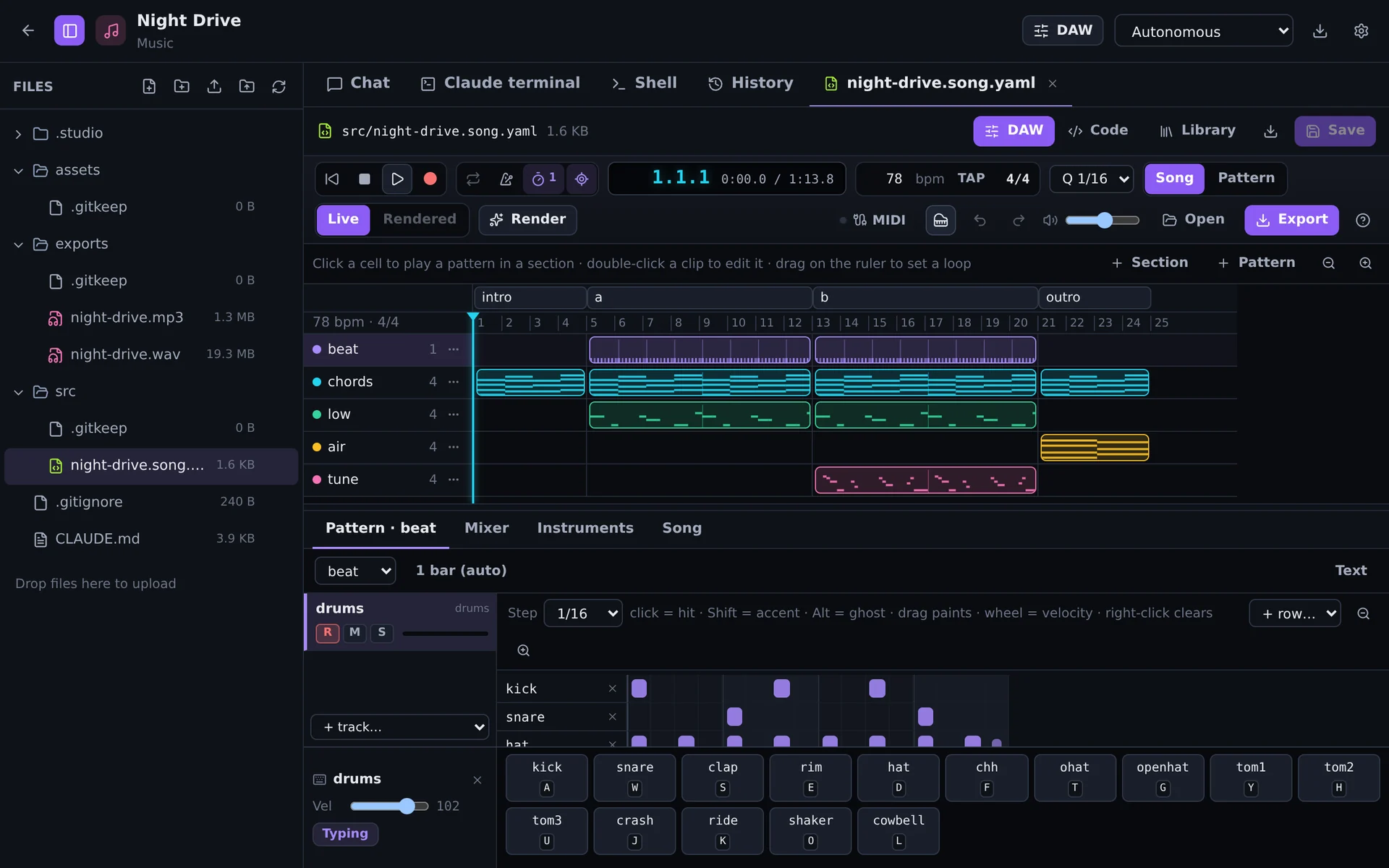
Open a .song.yaml file, or click DAW in a project. The song stays a text file; every edit changes only the lines it touches.
- Arrangement: sections across, patterns down. Click a cell to play a pattern in a section; drag on the ruler to loop a range.
- Piano roll for melodies and chords (draw, move, resize, copy, quantize, velocities, scale tint) and a step grid for drums.
- Mixer with faders, pan, mute/solo, effect chains and level meters; Instruments with a knob for every parameter.
- Live plays as you edit; Rendered plays the exact mix with all effects and mastering.
- Export: WAV, MP3, MIDI, stems, or one zip with everything. Open imports a
.midfile as a new song.
Playing and recording
Click the keyboard button to open the on-screen keyboard (pads for drum tracks). Play the armed track with the mouse, with your computer keys, or with a MIDI keyboard — connect it with the MIDI button. Record writes what you play into the piano roll or the step grid; one undo removes a take.
| Key | Does |
|---|---|
| Space | Play / pause |
| Home | Back to the start (or the loop start) |
| R | Record on / off, into the armed track |
| M · L | Metronome · loop (L while Typing is off) |
| A W S E D F … | Play notes (Typing on): the home row is the white keys |
| Z / X · C / V | Octave down / up · softer / louder |
| Ctrl+Z · Ctrl+Shift+Z | Undo · redo |
| Ctrl+S · ? | Save · all shortcuts |
MIDI keyboards need a browser with Web MIDI (Chrome, Edge, Firefox) and a page served over HTTPS or from localhost.
3D: the editor#
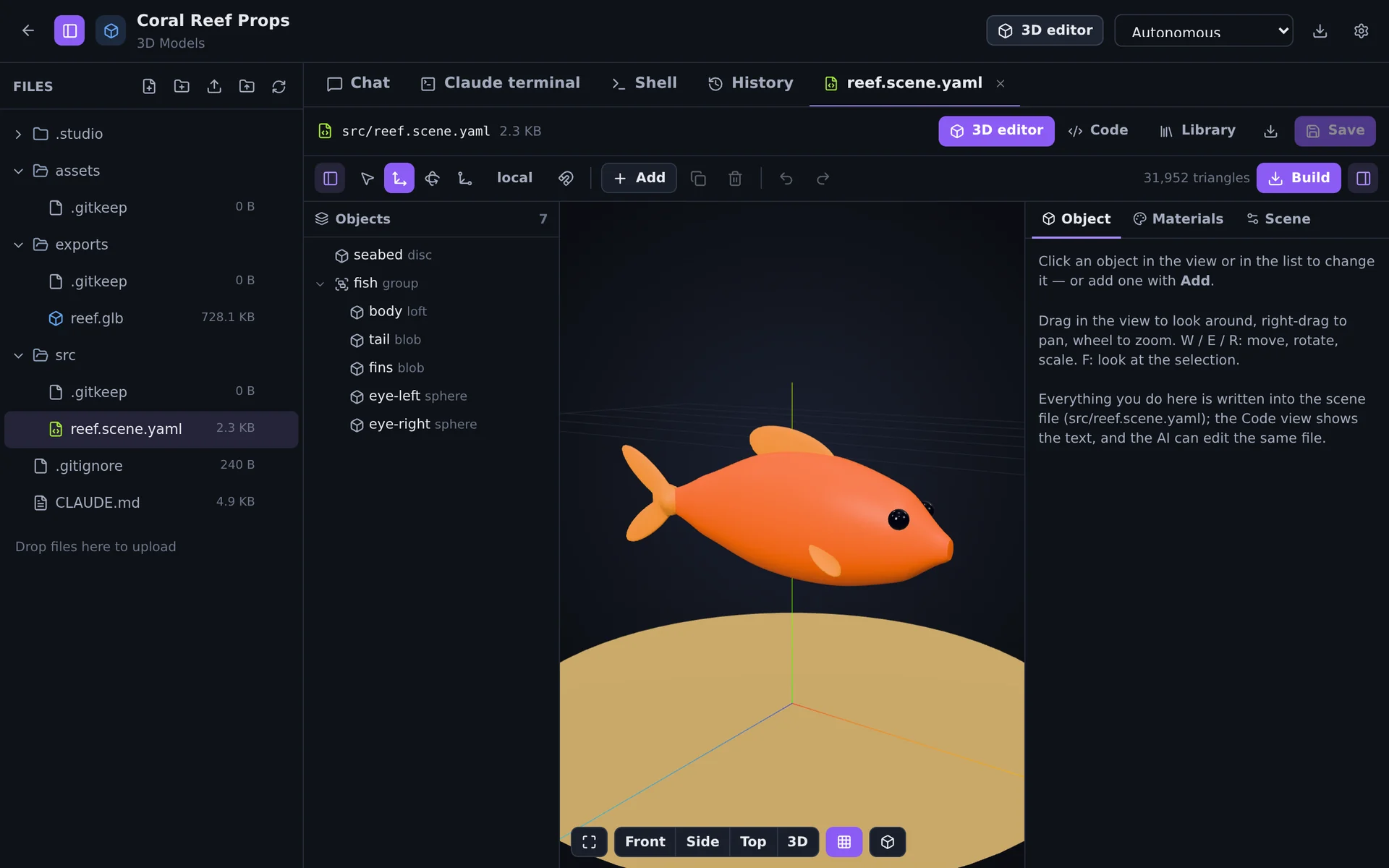
Open a .scene.yaml file, or click 3D editor. Drag to look around, right-drag to pan, wheel to zoom; W E R move, rotate and scale the selection, F looks at it.
- Objects: boxes, spheres, lofts and blobs for organic forms, groups, repeats and scatters, booleans, modifiers.
- Materials and textures: colours, image files, procedural textures, with several ways to map them.
- Build writes the
.glb(also .obj, .stl, .ply) intoexports/, with a four-view preview.
Images, video and animation#
The same principle, without a visual editor yet — the AI writes the text, the tool renders it, and you see the result in the file viewer:
| File | Tool | Result |
|---|---|---|
*.image.yaml | studio-image | Pictures from layers, shapes, text, textures and pixel art → PNG, JPG, WebP, ICO |
*.video.yaml | studio-video | Timelines of clips, pictures, title cards, transitions, subtitles and a soundtrack → MP4 |
*.stick.yaml | studio-stickman | Stick-figure scenes with poses, actions, props and sound → MP4 and sprite sheets |
In the file tree, right-click a folder → New song / 3D scene / stick animation / picture / video starts a file from a template, ready to render. The video tool pulls the others in: a timeline can contain a stick scene, a picture and a song, and renders them on demand.
Games, apps and their servers#
- Games and web apps run in the Preview (or Play) tab in a sandboxed frame. The AI checks its own work in a headless browser — screenshots and console output.
- Android apps are built with Gradle into a debug APK in
exports/. An administrator installs the Android SDK once (Admin → Android SDK). - Windows software is cross-compiled: .NET for console, WinForms and WPF programs, mingw-w64 for C and C++, NSIS for installers.
A backend for your app
When an app needs multiplayer, cloud saves, a leaderboard or an API, the AI writes a Node.js server in the project's server/ folder and the Studio runs it — no other hosting needed. It is reachable at <Studio address>/srv/<name>/ over HTTP and WebSocket. The Server tab shows status, live log, environment variables, restart and rollback; the Servers page lists all of yours.
Websites#
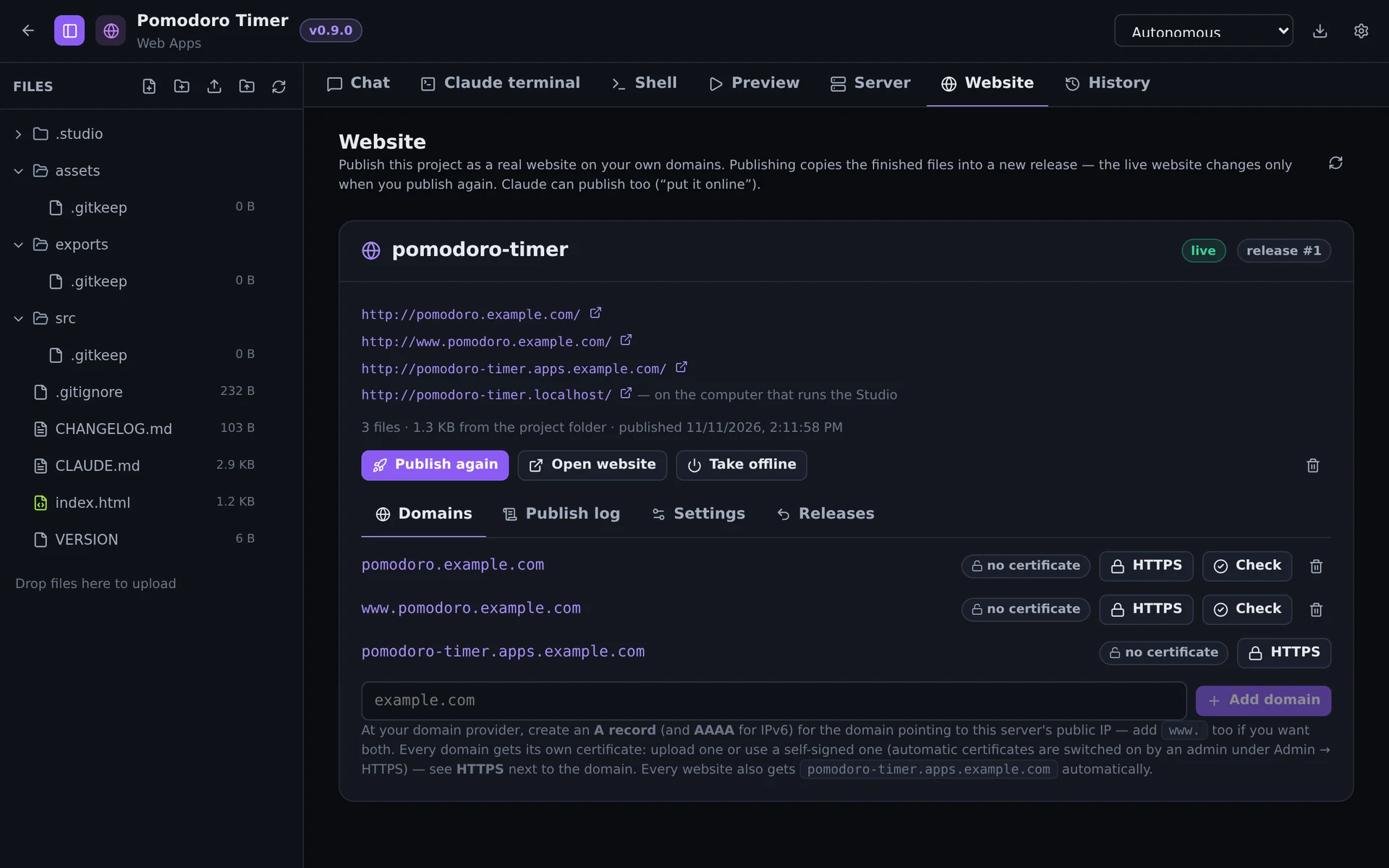
Web apps and games become real websites from the project's Website tab — or by telling the AI “put it online”.
- Publish copies the finished files into a new release. The live site changes only when you publish again; the last three releases can be rolled back to.
- Addresses:
<name>.localhost:8081on the Studio's computer,<name>.<base domain>when the server has one, and your own domains. - Domains: add one, create its A record (AAAA for IPv6) pointing to the server, press Check. HTTPS per domain: automatic, your own certificate, self-signed or off.
- A website and the project's servers share one origin:
fetch("/srv/<server>/…")works without CORS.
How the server side is set up: Server & HTTPS.
WordPress#
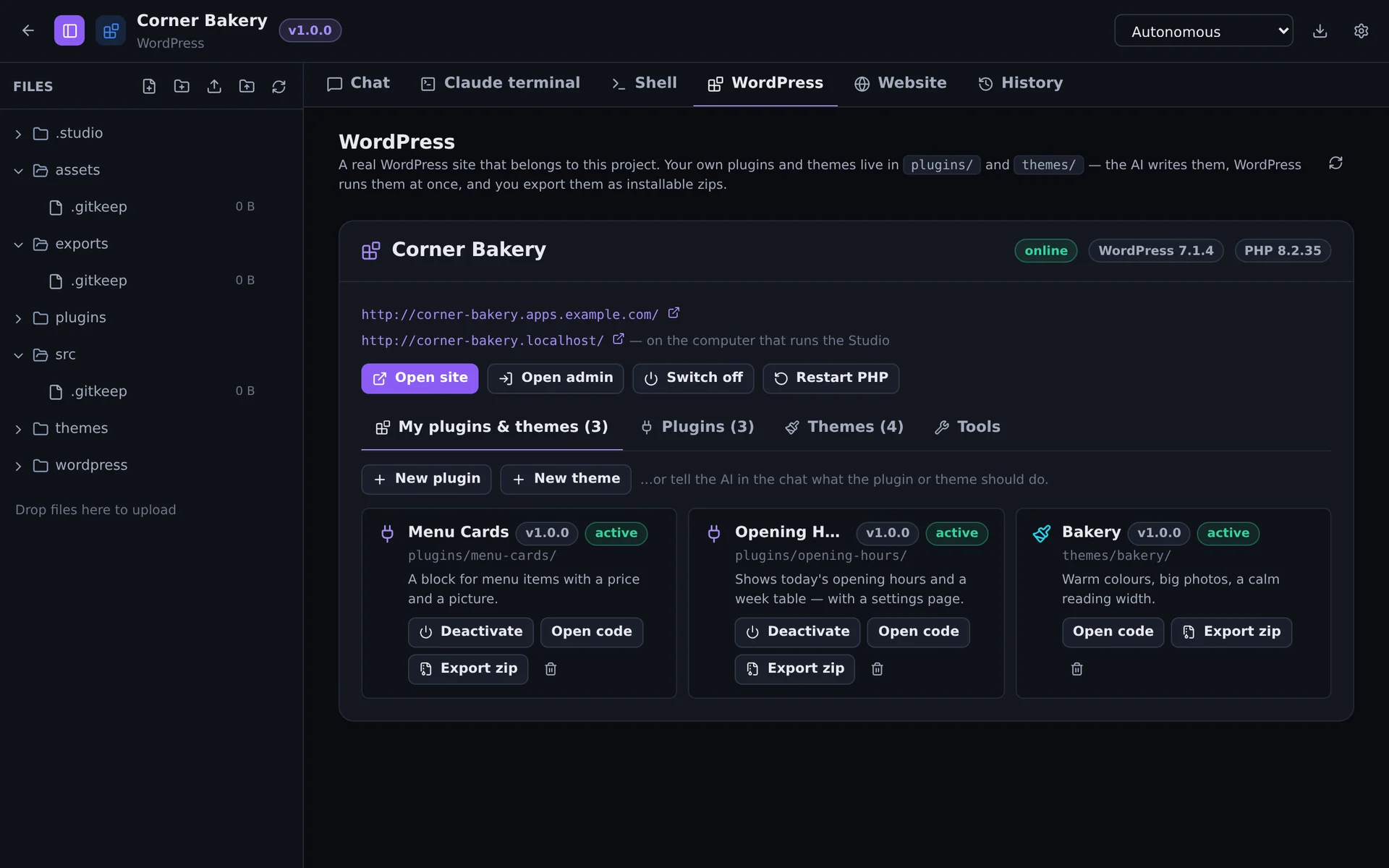
A project of the WordPress area holds a real WordPress site and the code you write for it.
- Set it up in the WordPress tab: title, admin user, language. The current WordPress is downloaded, gets its own database and its own address, and is switched on.
- Open it: Open site, and Open admin — which signs you in without a password.
- Build for it: New plugin or New theme starts from working code, or just tell the AI what you need.
- Export an installable zip for any other WordPress.
| Starter | Gives you |
|---|---|
| Plugin · basic | Main file, activation hooks, a shortcode |
| Plugin · settings page | Admin menu, Settings API, options, front-end output |
| Plugin · block | A Gutenberg block without a build step |
| Plugin · post type + REST | A custom post type and an own REST endpoint |
| Theme · block | Full-site editing: theme.json, templates, parts |
| Theme · classic | PHP templates: header, footer, index, functions |
Your modules live in the project's plugins/ and themes/ folders — versioned with the project and linked into the site, so a change is live at once. The installation itself (wordpress/) is not versioned.
The same tab manages installed plugins and themes (with a search of wordpress.org), WordPress updates, the PHP error log and debug mode, a new admin password, a database export, and removing the site. Domains and HTTPS are in the Website tab, as for any website.
The site's PHP runs as your account, can only reach the project folder and has no shell functions. Sending e-mail needs an SMTP plugin — the image has no mail server.
Library, packs and skills#
- My library — save what you made (a model, a sprite, a sound, a song) as a reusable asset; the AI searches it before creating something new. Global Space is what everyone on this Studio published.
- Packs — expansion content for the Studio software: instruments, samples, drum kits, synth presets, models, materials, plugins. Four are built in; you and the AI can make more.
- Skills & instructions — a skill is know-how for a recurring task (“how we build a WordPress plugin”, “how a song gets mixed”) that the AI loads when a task matches, or when you start a message with
/name. Instructions always apply — for everything, or per area.
Chat#
The Chat page is for plain conversations — questions, ideas, writing help. The AI can read attachments and search the web there, but changes nothing. When a conversation turns into something to build, start a project.
For administrators#
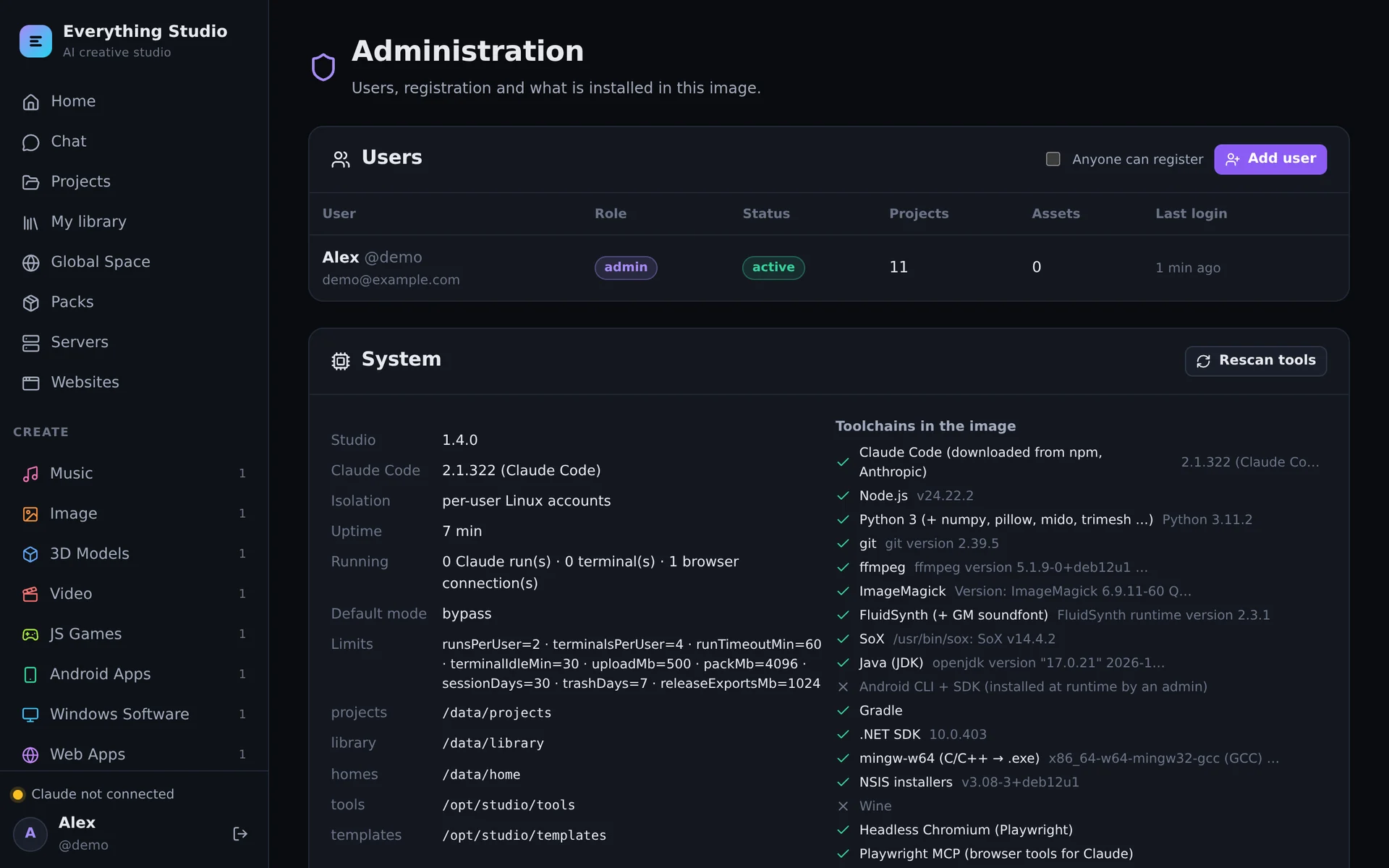
| Section | What you do there |
|---|---|
| Users | Add people, reset passwords, disable or delete accounts, open or close registration |
| System | Version, isolation, what the image contains |
| Claude Code | The installed version and its update |
| AI providers | Switch on Codex, Gemini, OpenCode; add your own ACP agent |
| Android SDK | Install it after accepting Google's license |
| HTTPS & certificates | Automatic certificates, the Studio's own domain, wildcard uploads, every certificate |
| Servers · Websites | Everything that runs and is online, with a stop switch |
| Usage by user | Who used how much |
| Instructions for every AI | House rules that apply to all users |
A disabled account cannot log in, and nothing of it keeps running — AI runs, terminals, servers and websites stop.
The studio command#
Inside a project — in the Shell tab, and for the AI — the studio command reaches the Studio itself:
studio lib search fox --kind model3d        # find reusable assets
studio lib add exports/fox.glb --name "Fox" # save one
studio packs search piano --type music      # instruments, samples, models …
studio service deploy                       # deploy the project's Node.js server
studio site publish                         # publish as a website
studio site domain add mygame.com           # domains, then: studio site cert
studio release minor --notes "…"            # a numbered release
studio wp new plugin opening-hours          # WordPress: an own plugin from a starter
studio wp export opening-hours              # … and its installable zip
studio skill list                           # know-how for this area
studio help